
You've Claimed Your Profile on Find My Nursery. Now What?
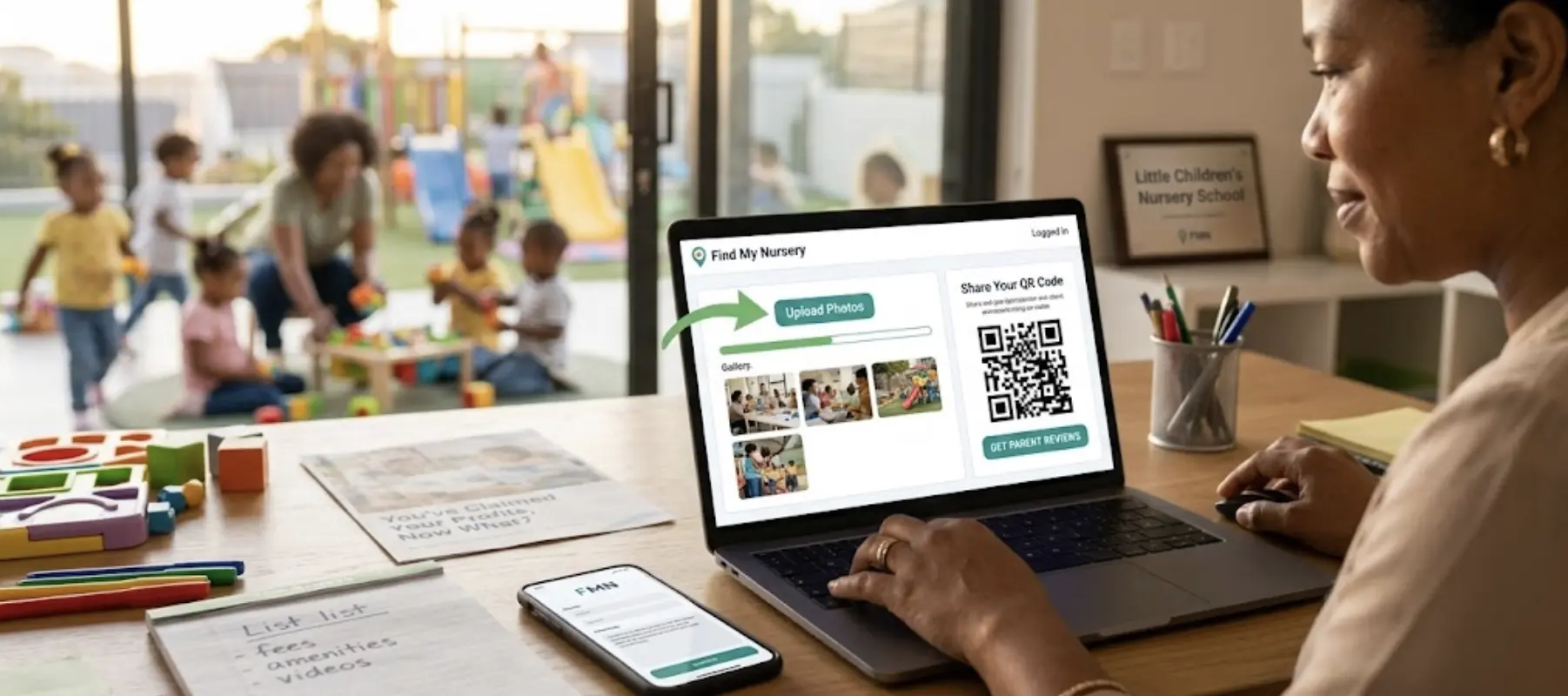
Claiming your school on Find My Nursery is the easy part. It takes a few minutes, it's free, and it puts your name back on your own profile. But a claimed profile that's still half-empty doesn't do much more for you than an unclaimed one did. The real value starts once you actually work through your dashboard.
Short on time? Start with these five:
- Update your contact info. Phone, email and WhatsApp, correct and current.
- Add your photos. Real ones, not stock.
- Get your reviews going. A few real, recent reviews say more than any description can.
- Add your fees. More on why below, it matters more than most owners think.
- Fill in your amenities and info. Ages, meals, transport, philosophy, the details parents filter by.
Here's a closer look at each section in your dashboard, including these five and everything else worth completing.
1. Listing details, the basics parents check first
Under Edit Nursery Profile, start with School Name, About Us / Description, Phone, Email, Website and your Registration Number. This is also where you flag whether you're currently running any Special Offers, and select your category or categories: After Care, Crèche / Baby Care (0-2 years), Grade R / Preparatory (5-6 years), Montessori, Nursery School (3-5 years), or Preschool / Educare (3-5 years). Select every category that genuinely applies, this is part of how parent searches get matched to your profile.
2. Photos and videos, the highest-impact section
How many photos you can add depends on your plan. Essential gives you one profile photo, Premium unlocks a full gallery of up to 10 photos plus up to 3 videos (paste a YouTube or Vimeo link, or upload a clip directly, MP4, MOV or WEBM, up to 50MB each). Whichever tier you're on, this is the section to prioritise. Our own data shows 57.6% of parents look at your photos before they read a word of your description, so it isn't optional polish, it's what decides whether a parent keeps reading at all. Show real classrooms, outdoor space and everyday moments, not stock imagery. See exactly what's included on your plan on our Services We Offer page.
3. Opening hours
Set your hours for every day of the week, Monday through Sunday, including marking days as Closed where relevant. An accurate schedule avoids the single most avoidable reason a parent gives up on a profile: turning up, or calling, at a time you're not actually open.
4. Social links, and get WhatsApp right
This is where you add the links that appear on your public profile: your WhatsApp number (the dashboard auto-generates the wa.me link for you), Instagram, Facebook and TikTok. WhatsApp is the number one way parents choose to contact schools on Find My Nursery, so double-check this number is correct and monitored daily. A message answered within a few hours converts at a much higher rate than one that sits overnight.
5. Reviews
Every claimed profile can generate a QR code from the Share Your QR Code section, built specifically for collecting reviews. Print it, put it up at pickup, hand it to parents at your next parent evening, and ask happy families directly, don't wait for reviews to trickle in on their own.
Humpty Dumpty Educare in Mitchells Plain saw enrolments climb too, including a parent who moved from Pretoria to Cape Town and found them on Find My Nursery. Reviews double as product feedback, they tell you what parents actually value and what's worth improving.
6. Add your fees, don't hide them
This one's uncomfortable for a lot of schools, and understandably so, nobody wants to look expensive next to a competitor down the road. But here's what our data actually shows: schools without fees listed get plenty of enquiries, and a lot of those enquiries go quiet the moment a parent finds out the price somewhere else, a phone call, a WhatsApp reply, a visit. By then you've spent the time and they've already moved on.
Putting your fees up front does two things. It filters in the parents who were always going to be a good fit, and it lets you show up when parents search using Find My Nursery's price filters (Under R2,000, R2,000-R4,000, R4,000-R6,000, R6,000+), so you're not invisible to the exact families budgeting in your range. An enquiry from a parent who already knows your fees is a far more serious enquiry than one from a parent who doesn't.
Not claimed yet?
None of this is available until you've claimed your school. It's free and takes a few minutes.
Claim Your School Free7. Programme details
This section is where a lot of the practical parent decision-making actually happens: Total Capacity, your Child-to-Staff Ratio (children per group and staff per group), whether Meals are provided (none, snacks only, lunch included, or all meals included), whether Transport is offered and which areas it covers, and your Languages of Instruction. Parents searching with specific needs, a particular language, meals included, transport from their suburb, are filtered by exactly this information, so leaving it blank means you simply don't appear in those searches.
8. Educational philosophy and religion
Select every approach that genuinely applies: Montessori, Play-based, Waldorf / Steiner, Christian, Reggio Emilia, or search for others not shown. This is a strong filter for parents who already know what kind of environment they want for their child, don't skip it because your approach feels obvious to you, it isn't obvious to a parent scrolling search results.
9. Amenities, therapy and support, and activities
Three more sections worth the ten minutes each takes:
- Amenities: outdoor play area, indoor play area, swimming pool, security guard, CCTV, and more.
- Therapy & Support: speech therapy, occupational therapy, first aid trained staff, remedial support, psychology or social work.
- Activities: over 100 options across sport, arts, STEM, life skills and languages, from ballet and chess to coding and swimming.
These sections exist because parents filter by them. A school offering occupational therapy or coding classes and not listing it is invisible to every parent searching for exactly that.
10. Check your Search Performance, not just your enquiries inbox
Under Search Performance you'll find an Overview, Google Rankings and Site Search, showing which terms parents actually used to find you, where you rank, and how that's trending. Your enquiries inbox tells you who contacted you. Search Performance tells you why, or why not.
11. Tour Booking, and the growth tools beyond your own profile
Tour Booking lets parents request a visit directly through your profile instead of a back-and-forth phone call. Beyond your listing itself, the Grow section of the dashboard includes Careers (post a job directly), the Resource Hub, Advertise, Growth Options and Grow With FM Digital Solutions, worth exploring once your core profile is complete and you're ready to push further.
The bottom line
There's a lot inside your dashboard, and all of it is worth completing. If you're pressed for time, start with the five at the top of this guide, contact info, photos, reviews, fees, and your amenities and programme info, and build out the rest from there.
Once you've got this running, our next guide looks at how to go further, using Search Performance and platform-wide data to make real decisions about where to focus your marketing and enrolment efforts: "Beyond the Directory: How to Use Find My Nursery's Data to Make Smarter Decisions."
Haven't claimed yet? Start here: Why You Should Claim Your Nursery School Profile or go straight to findmynursery.net/claim-your-school
Already claimed? Log in to your dashboard
Source: Find My Nursery owner dashboard (v7.1.0) and internal platform data, current as of 27 August 2026.
FAQs
How many photos and videos can I actually add?
It depends on your plan. Essential includes 1 profile photo. Premium unlocks a full gallery of up to 10 photos plus up to 3 videos. Full details are on our Services We Offer page.
Should I really list my fees, even if my competitors don't?
Yes. Schools that hide fees still get enquiries, but many go quiet the moment the parent finds the price elsewhere. Listing fees upfront filters in serious enquiries and lets you show up when parents filter search by price range.
How do I actually get reviews, not just ask for them once?
Generate your QR code from the dashboard's Share Your QR Code section and make asking a habit, at pickup, at parent evenings, after a positive interaction, not a one-off request.
What's the real difference between Essential and Premium?
Essential lets you claim and manage your profile, correct details, one photo, programme info. Premium adds the full photo and video gallery, an analytics dashboard, a direct WhatsApp button, top placement in search, a Premium badge, tour booking, and a Quarterly Growth Report with a consultation.
Do I need to fill in every single section to see results?
No, but the first five (contact info, photos, reviews, fees, amenities and programme info) do most of the work. Everything else builds on top of that foundation.
Quick Summary
- Claiming is step one. The dashboard is where the real work, and the real results, happen.
- Five quick wins if you're short on time: update contact info, add real photos, start collecting reviews, list your fees, and complete amenities and programme details.
- Photos and video limits depend on plan: 1 photo on Essential, up to 10 photos and 3 videos on Premium.
- Listing fees upfront filters in serious enquiries and makes you visible in parent price-range searches, hiding them just delays the drop-off, it doesn't prevent it.
- Reviews via your QR code, and complete programme details (capacity, ratios, meals, transport, languages, philosophy, amenities, activities), are what get your profile matched to the right parent searches.
- Once your dashboard is filled in, check Search Performance regularly, it shows which searches are actually working, not just who contacted you.
- Next step: read "Beyond the Directory: How to Use Find My Nursery's Data to Make Smarter Decisions."
Owners Also Read
Owners Also Read
Inside the Find My Nursery Premium Dashboard: What Changes When You Upgrade
Inside the Find My Nursery Premium Dashboard: What Changes When You Upgrade What parents...
What Does Your Nursery School Get on Find My Nursery? Listed vs Essential vs Premium
What Do You Actually Get When You List Your Nursery School on Find My...

How to Search and Filter Nursery Schools on Find My Nursery (Including School Networks Like Curro and Trinityhouse)
How to Search and Filter Nursery Schools on Find My Nursery (Including School Networks...
Parents Are Already Searching for You
"We went from invisible online to #1 on Google in our area," says Little Children's Nursery School, Athlone in their testimonial. Claim your free listing and get the +240% average visibility boost.
Claim Your School for Free